

Slack is among the primary methods that teams use to interact with each other at work these days. However, manually keeping track of updates across different apps is not only time-consuming but also not very effective. Automating Slack notifications is essential because it simplifies tasks for companies by streamlining operations, making sure decisions are taken in real time, and significantly increasing operational efficiency by eliminating the need for manual data transfer. These automations are built with no-code tools that let you build software workflows through visual, drag-and-drop interfaces without writing any code.
The most critical question now is: How can you take advantage of these benefits and set up automated Slack notifications without having to write any code? We'll look at different platforms and ways to show you how to set up these integrations right away.
Top 5 Slack Workflow Automation Builders
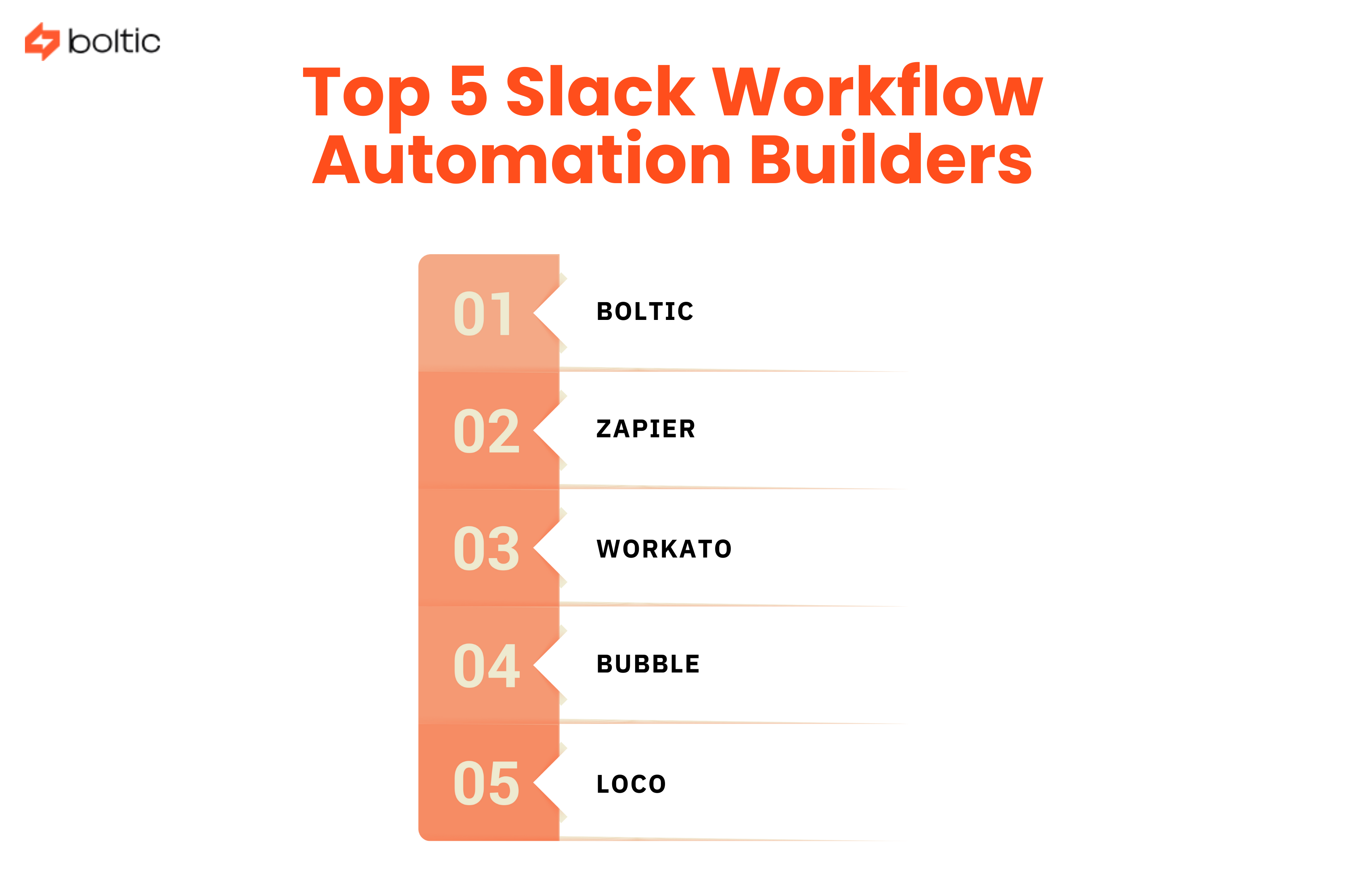
No-code platforms have made it possible for everyone, from sales managers and HR professionals to project leads and marketing teams, to use advanced workflow automation. These tools connect your apps to your Slack workspace. Here are five of the most popular apps for automating Slack notifications.
1. Boltic
It is becoming a powerful and enterprise-grade platform for automating data and workflows. It emphasises handling complex data and seamless integration, making it an excellent choice for data-centric Slack notifications.
Key Features for Slack Automation:
- Visual Workflow Engine: Uses a canvas that you can drag and drop to set up multi-step workflows, triggers, actions and conditional logic. Boltic lets users add a lot of different and personalised actions to a single workflow.
- Deep Slack Integration: With this, you can create public and private channels, invite people to join and set channel topics. This is very important for automated incident management or project creation.
- Data Transformation: Boltic lets you transform, filter, and modify data from your trigger app before it's sent to Slack, which isn't possible with standard tools. You can either find a value within a database or calculate a KPI and add that extra data to the notification.
- AI Integration: Boltic lets you use OpenAI models, which enables you to create more advanced and context-aware automations. For example, you could set up an automation to check the tone of an incoming email and only send a Slack alert if the tone is very negative.
Best For: Teams that need to automate notifications based on complex data from multiple sources or need advanced channel and user management as part of their automated processes.
2. Zapier
It is one of the most popular and user-friendly integration tools.
Key Features for Slack Automation:
- Massive App Library: Links Slack to more than 6,000 business apps, including CRMs, marketing tools, payment gateways, and file storage. Zapier probably connects to any app that is out there.
- Easy to set up: Workflows, or "Zaps," are made using a simple "When this happens (Trigger), do that (Action)" logic. This makes setting them up very quick and easy for people who aren't tech-savvy.
- Multi-Step Flows & Filters: You can easily add filtering steps and conditional logic to make sure notifications only go off when certain conditions are met (for example, only send a Slack notification if a new lead's company has more than 50 employees).
Best For: People who need to connect Slack to a lot of different third-party apps and want a quick, easy and reliable way to set up transactional alerts.
3. Workato
It is a top-notch Integration Platform as a Service (iPaaS) for businesses that offers high levels of governance, security and the ability to handle complex workflows. IT teams often use it for critical tasks.
Key Features for Slack Automation:
- Enterprise-Grade Scalability: Designed for large companies that need to handle a lot of data and meet strict compliance requirements.
- Slack Workbot: Workato's built-in Workbot lets you automate complex two-way conversations. With slash commands, users can run workflows and get data from systems like Jira or Salesforce directly within Slack.
- Excellent Channel Management: It gives you a lot of control over your Slack workspace. For example, it can automatically create a private channel, name it, and add team members when an event occurs (such as an emergency or a high-priority ticket).
Best For: Large organisations that need complicated, system-of-record automations, rigid regulations, and the ability to let users do things (not just get notifications) inside Slack.
4. Bubble
It is a no-code platform that lets you build full, custom web and mobile apps. The Slack integration lets your custom app and Slack share information with each other. For instance, your custom app can let Slack receive notifications of events (like when a new user signs up) and also let Slack initiate actions or transfer data back to your app.
Key Features for Slack Automation:
- Integrating Custom Apps: Ideal for people who built their main business app on Bubble and want to connect its logic with Slack. For instance, when a new record is added to the Bubble database, a message should be automatically posted.
- API Connector: Bubble has a built-in API Connector that lets you use the full Slack API. This implies that you can create notifications or bot interactions that are very specific and one-of-a-kind, which standard integrators might not support right away.
- Focus on UI/UX: As a full-stack builder, its workflow actions can send Slack notifications as part of a larger user journey. For example, when a user clicks a button in the Bubble app, a notification is sent.
Best for: People who have made or are making a proprietary app on the Bubble platform and need a smooth, custom connection between their app's logic and Slack.
5. Loco
It is a no-code platform that is specifically designed for creating custom Slack bots and automation rules. This makes it a specialised and easy-to-use choice for processes that take place within Slack.
Key Features for Slack Automation:
- Visual Rule Builder: Loco has a visual, rule-based builder that is made just for conversational workflows and Slack-based triggers.
- Custom Slack Bots: Let you make bots with your own brand for tasks like approving expenses, sorting support tickets or answering general questions right in Slack.
- Data Access via Chat: You can use conversational commands in Slack to get data from connected sources. This makes Slack a quick way to look up data, which cuts down on the need to switch contexts for routine questions.
Best For: Teams that want to make their own customised Slack bots and depend on conversation-driven automation and data access, with a focus on the Slack environment itself.
How to Integrate Slack with Low-Code Automation?
It might seem challenging to connect your main work tools to Slack without writing code, but it's actually a simple three-step process that works with any tool. We'll look at the different options, from simple internal Slack features to more advanced third-party integration tools like Boltic.
Using Third-Party Integration Tools
You need an external platform to connect Slack to your business tools, such as your CRM, payment system or database. Boltic, Zapier, and Workato are a few tools that connect your apps by acting as a bridge between your applications. Here’s how to set up:
- The trigger (the "If"): You specify to the automation tool (like Boltic) what event to watch for in your source app. For example, if a customer fills out a new form.
- The Action (The "Then"): You instruct the tool what to do immediately, which is to send a message to Slack. For example, you can set up an automated message to go to the #sales-leads channel.
- The Data Mapping (The "What to Say"): You choose specific data fields from the trigger, such as the customer's name, email, or request details and drag and drop them into the Slack message template. Boltic's main advantage here is that it can refine the data first. For example, figuring out a score or checking a customer's history before delivering the final message.
Using Slackbot
Slackbot is the easiest way to automate routine and straightforward internal tasks. It doesn't need external setup or third-party integrations since it's the workspace's built-in robot. Its no-code feature is configured to recognise and respond to specific keywords. This makes it an invaluable asset for quick reminders and sharing information within your organisation.
How to Set Up a Response for a Slackbot?
- In Slack, go to the Administration panel or Workspace Settings.
- Look for the Slackbot area.
- Click to add a new answer.
- Set the Trigger Phrase(s) and response. You set up a simple rule that says, "If this happens, then that will happen." When someone types a particular word or phrase, Slackbot sends back a pre-written message right away.
Best for: Setting up a Slackbot to answer common questions like "How do I expense this?" can save the HR or Finance team dozens of messages every week.
Posting to Private Slack Channels
Sending automated messages to a private channel where sensitive information is shared is very important, but it needs one more step for security.
Problem:
The issue is that when you connect a tool like Boltic to Slack, it usually uses a bot user to send messages. By default, this bot user can't see or post to a private channel.
Solution:
You have to invite the integration's bot user to a private channel manually before the automation can post to that channel.
Steps:
- Find the Bot's Name: Slack makes a bot user for each third-party app you connect to (for example, "Boltic Bot"). This name will usually show up in the list of people or apps in your workspace.
- Open the Private Channel: Go to the private channel where you want the notification to go.
- Ask the Bot: In the message box, type /invite @[Bot Name] and hit enter.
Once the bot joins the private channel, your no-code workflow will be able to post messages to it. This will make sure that only the right team members can see sensitive information. This is especially important for logs of security incidents, HR alerts, and financial reports.
How to set up Slack Direct messages via automations?
Automated channel messages are excellent for team-wide announcements, but Direct Messages (DMs) are the most effective way to send personalised, actionable notifications to a specific person. This makes sure that only the designated individual sees a task, an approval request or an important update that is only important to them.
Use Cases for Automated DMs
- Task Assignment: Send a DM to a user when a new task is assigned to them.
- Approval Requests: Sending a manager a direct message when they need to look at a vacation request or an invoice.
- Daily Reminders: Sending a user a personalised summary of their upcoming schedule or essential metrics.
The No-Code Plan for Automating DM
Setting up an automated DM is similar to posting to a channel, but it requires one crucial extra step: finding the specific recipient in Slack.
- The Trigger: Identifying the Recipient
The automation begins when something happens in your source application, like when a new expense report is submitted. Your system of record must include the recipient's unique identifier, which is usually their email address, in the data that this trigger pulls.
- The Lookup: Linking an Email Address to a Slack ID
In an automated workflow, you can't send DMs directly to an email address in Slack. You need the internal Slack User ID. This is where your automation platform requires a separate step.
The Boltic automation tool pulls the email address from your trigger data, such as manager_email@company.com. Then, it uses Slack's "Find User by Email" action to quickly get the unique Slack User ID that goes with it.
- DM Action: The last step is to click "Send Direct Message" in Slack. You choose the User ID that came back from the lookup step. The data from the first trigger is used to make the message.
- Boltic and Advanced User Operations: Tools like Boltic often have strong and specific actions for managing users, like "Find User by Email" and "Send Direct Message." This makes the complicated, multi-step process easier and more reliable for large businesses with complex user databases.
- DM Action: The last step is to click "Send Direct Message" in Slack. You choose the User ID that came back from the lookup step. The data from the first trigger is used to make the message.
Why Choose Boltic?
A lot of no-code tools can handle simple Slack notifications, but Boltic's focus on data and enterprise-grade workflows makes it the best choice for more complex automation needs.
- Data-First Automation:
Most automation tools are transactional, meaning they wait for something to happen and then perform an action. But Boltic is intended to be a data platform first. This means it can:
- Work with Data from Databases: You can easily connect to SQL, NoSQL, and data warehouses like BigQuery or Snowflake to get real-time, aggregated data and send notifications when a data metric crosses a threshold (for example, "Notify Slack when revenue drops by 10%").
- Work with Data from Databases: You can easily connect to SQL, NoSQL, and data warehouses like BigQuery or Snowflake to get real-time, aggregated data and send notifications when a data metric crosses a threshold (for example, "Notify Slack when revenue drops by 10%").
- Full Support For Slack Activity:
Boltic's integration goes beyond just Send Message. Its Slack activity is a strong set of tasks that includes:
- Channel Management: Make a public or private channel and set a topic. This is important for cases like automated project creation or incident response, where a new channel needs to be created right away upon a trigger.
- Channel Management: Make a public or private channel and set a topic. This is important for cases like automated project creation or incident response, where a new channel needs to be created right away upon a trigger.
- Workflows That Use AI:
Boltic's one-of-a-kind Model Context Protocol (MCP) makes it ready for the future of automation. Boltic connects Large Language Models (LLMs) or AI Agents to tasks that can be done based on human language. This means that AI decisions can be directly linked to tasks that can be done, like sending a Slack notification. For instance, an AI agent could look at customer feedback and only send a high-priority Slack alert if the input is "Extremely Negative."
- Scalability And Reliability:
Stability and security are must-haves for large companies. Boltic has features such as robust error handling, detailed logs, and a platform built for high-volume execution. This makes sure that mission-critical notifications are sent safely and reliably, with the level of control needed for enterprise environments.
In short, Boltics gives businesses the flexible, robust, no-code architecture they need to make Slack notifications beyond mere alerts. They need to be dynamic, data-rich and linked to the core business logic. Putting data at the heart of the automation turns Slack from a messaging app into a smart, automated operations centre.
drives valuable insights
Organize your big data operations with a free forever plan
An agentic platform revolutionizing workflow management and automation through AI-driven solutions. It enables seamless tool integration, real-time decision-making, and enhanced productivity
Here’s what we do in the meeting:
- Experience Fynd Boltic's features firsthand.
- Learn how to automate your data workflows.
- Get answers to your specific questions.